Most routers are an afterthought. A grey box with seven aerials that turns up in a carrier bag and then quietly throttles the fast broadband you just paid for.
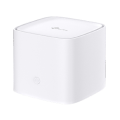
The Cuckoo Hub is the opposite. It's a Wi-Fi 6 mesh unit, so it can actually carry full fibre speeds around the house, and it's the same unit whether you need one or four.
One comes with every plan, included. Not rented, not an optional extra, not £10 a month for "premium Wi-Fi".
The short version: it gets your full fibre into every room, and then it leaves you alone.
The Hub pairs with the TP-Link Aginet app, which is where you set it up in the first place and where everything lives afterwards.
No logging into a settings page with an IP address you have to look up. No wondering which of the 40 devices on the list is the dishwasher.
Set up without a technician. The app walks you through it in a few minutes, first Hub and any extras.
See what's connected. Every device, its signal strength, and which Hub it's talking to.
Parental controls that aren't a fight. Profiles per person, content filtering by age, bedtimes and daily time limits.
Guest Wi-Fi in a couple of taps. A separate network with its own password, so visitors get the internet and not your whole house.
Block anything you don't recognise. Kick a device off the network and keep it off.
It depends on the shape of your house more than the size of it. Thick walls and long thin layouts are the usual culprits.
The one that comes free with your plan. Plenty on its own for a flat, a maisonette or a smaller house.
Sorts out upstairs, the back bedroom, and the corner of the house where the signal always used to give up.
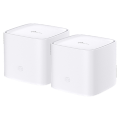
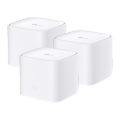
For lofts, extensions, stone walls and garden offices. You can have up to 4 Hubs in total.
Not sure? Start with the one that's included. If a room turns out to be sulky, you can add another Hub later — you don't have to decide today.
About 5 minutes, start to finish. There's nothing to configure and nobody has to come round.
Adding a second Hub is the same job again, minus the thinking.
Plug it in
Power lead in the wall, network cable from your ONT into the Hub. That is the wiring done.
Give it a minute
It sorts itself out while you make a cup of tea. The light settles when it is ready.
Join the Wi-Fi
The network name and password are printed on the Hub. Type them in once per device.
Adding another? Same again
Plug the next Hub in where the signal starts to dip. It finds the first one on its own.
No. One Hub comes with every plan, included. Extra Hubs are a few pounds a month each — you'll see the exact price when you pick your speed.
An extender makes a second, weaker network with its own name, and you end up manually switching between them. Mesh units talk to each other and behave like one network, so your phone hands over as you move about the house.
TP-Link Aginet, free on the App Store and Google Play. It's what you use to set the Hub up in the first place, and it's where the device list, parental controls and guest Wi-Fi live afterwards.
Sign in and you can manage the network when you're not at home too.
Yes. Make a profile per person in the app, add their devices, and set a filter level by age. You can add bedtimes, daily time limits, and block individual sites.
Out in the open, roughly central, off the floor. Inside a cupboard, behind the telly or down beside the sofa are the three classic mistakes.
Extra Hubs go about halfway between the first one and the room you're trying to reach — not right at the far end.
Yes. Put the Hub into bridge mode and your own router or mesh system takes over. Our support team can talk you through it.
Have a look at supportOver a cable, yes. Over Wi-Fi it depends on the device, the room and how many walls are in the way — which is true of any router. If you want every last megabit for a console or a desktop, plug it in.
You'll still get a Hub, and it's still included. Because the fibre is already at your house there's usually no engineer visit either — the Hub turns up in the post and you plug it in.
How full fibre gets installedCheck your postcode, pick a speed, and tell us how many Hubs your house needs. We'll do the rest.
Check your postcode